基本概念#
裸仓库#
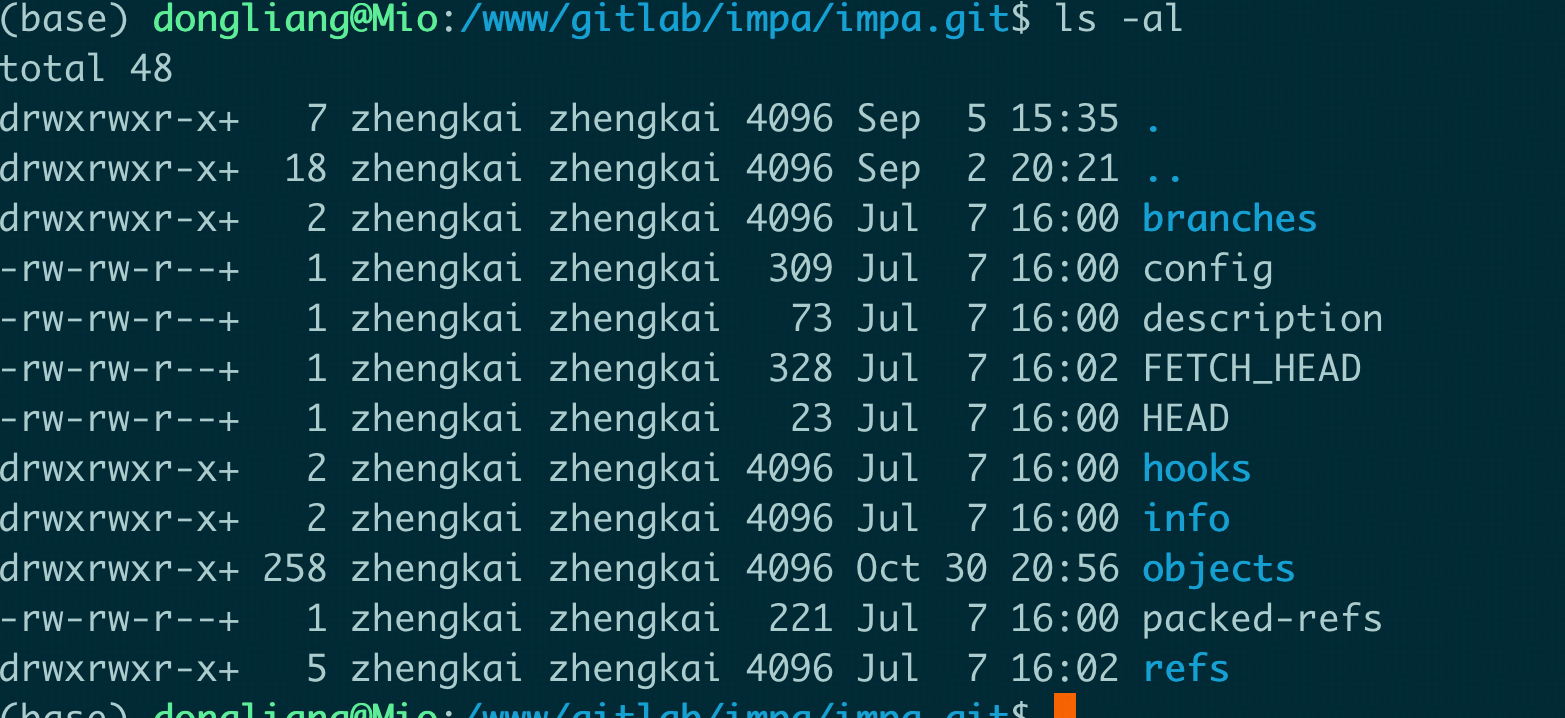
裸仓库 指的是 没有工作区(代码文件)的 Git 仓库,只包含Git 版本控制所需的元数据和对象(.git 目录的内容),而不包含实际的项目文件副本
1
| git init --bare myproject.git
|
 使用方式:
使用方式:
 1
 2
 3
 4
 5
 6
 7
 8
 9
10
11
12
13
| mkdir /srv/git/
cd /srv/git/
git init --bare myproject.git
git clone user@server:/srv/git/myproject.git
git add .
git commit -m "add new feature"
git push origin main
|
origin 别名#
origin 是远程仓库的一个名称,是默认的别名,可以使用其他的。通常在以下两个场景下被设置
git clone 一个仓库#
1
| git clone https://github.com/user/project.git
|
- 克隆远程代码到一个新的目录里;
- 自动为刚才克隆的那个地址创建一个远程别名叫 origin ;
1
2
3
4
5
6
| cd project
git remote -v
输出
#origin https://github.com/user/project.git (fetch)
#origin https://github.com/user/project.git (push)
|
手动添加远程#
1
2
3
4
5
| git init
git remote add origin https://github.com/user/newrepo.git
git push -u origin main
|
后续操作#
1
2
3
4
5
| git remote -v
git remote set-url origin https://new.url.git
git remote remove origin
|
upstream#
upstream 是指当前分支默认关联的远程分支,用于拉取更新 和推送。
设置upstream 的几种方式#
常用操作#
1
| git config --global alias.url "config --get remote.origin.url"
|
git push#
1
2
3
4
5
6
7
| git push <远程仓库名> <本地分支>:<远程分支>
# 本地有一个分支dev, 希望把它推送到远程的origin 仓库,并且远程叫做 dev
git push origin dev:dev
# 如果远程分支 和本地分支名字一样,可以简写
git push origin dev
|
git pull#
1
2
3
4
| git pull <远程仓库名> <远程分支>:<本地分支>
git pull origin dev: feature
# 把远程的origin/dev 拉下来合并到本地的feature 分支
|
git clone#
1
2
3
4
5
6
| git clone https://codeup.aliyun.com/675feb1320a07de19c7c13a3/engines/test.git
cd test
touch README.md
git add README.md
git commit -m "add README"
git push -u origin master
|
1
2
3
4
5
6
| cd existing_folder
git init
git remote add origin https://codeup.aliyun.com/675feb1320a07de19c7c13a3/engines/test.git
git add .
git commit
git push -u origin master
|
git restore#
git restore 是2019年引入的命令,用来替代传统的 git checkout 在 “撤销修改”方面的部分功能。主要作用如下:#
从另一个提交、分支,或者暂存区恢复文件内容,从而撤销工作区 或者 暂存区对文件的修改。#
撤销工作区修改#
从最近一次提交 恢复文件内容, 丢弃自上次提交以来在工作区对该文件的所有改动
撤销暂存区修改#
如果文件已经被 git add 添加到暂存区(已经staged),想让他回到未暂存状态,可以:
1
| git restore --staged <file>
|
暂存区的该文件版本恢复为最近一次提交的状态,但是不会修改工作区文件的内容。
同时恢复暂存区 和 工作区#
1
| git restore --source=HEAD --staged --worktree <file>
|
文件完全回到上一次提交的状态(撤销所有未提交的修改)
从其他提交或者分支恢复文件#
指定源(—source)
1
| git restore --source=feature-branch <file>
|
example#
假设当前项目状态如下:
1
2
3
4
5
6
7
8
9
| $ git status
On branch main
Changes to be committed:
(use "git restore --staged <file>..." to unstage)
modified: index.html
Changes not staged for commit:
(use "git restore <file>..." to discard changes in working directory)
modified: app.js
|
情形1:取消暂存
1
| git restore --staged index.html
|
此命令会把 index.html 从暂存区拿出来,使其回到未暂存状态,工作区的修改依旧保留。
情形2:丢弃工作区修改
此命令会让 app.js 文件回到上次提交的状态,丢弃在工作目录中的所有改动。
情形3:从指定分支恢复文件
1
| git restore --source=develop config.json
|
会用 develop 分支的 config.json 覆盖当前分支同名文件。#
✅ 小结:git restore 的优势在于语义清晰,命令更具体,降低误操作风险。它主要用于“恢复文件内容”,而切换分支则由 git switch 完成。#
Git LFS 使用#
1
2
3
4
5
| git lfs track "*.pt"
git add model.pt
git commit -m "Add model with Git LFS"
|